Introduction to Enshrouded Multiplayer
Setting up a dedicated server in Enshrouded enhances the multiplayer experience by allowing uninterrupted gameplay with friends. This comprehensive guide will walk you through all server options and help you choose the best setup for your needs.
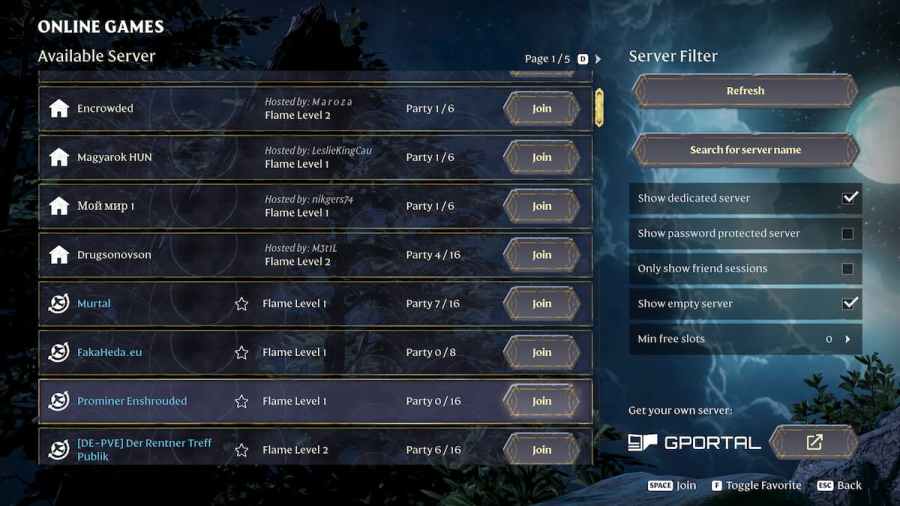
Server Options Overview
When starting Enshrouded, you’ll be given three server options:
1. Private Server
Best For: Solo play
Features:
- Single-player gameplay
- No other players can join
- Full control of game world
- Practice and experimentation
How to Use:
- Select “Private” from main menu
- Choose or create character
- Start playing immediately
2. Host Server
Best For: Playing with friends (casual sessions)
Features:
- Allows up to 16 players
- You are the host
- Server inactive when you’re offline
- Free to use
- Easy setup
Limitations:
- Friends can only play when you’re online
- Server stops when you log off
- Host’s computer must handle server load
3. Join Server
Best For: Joining someone else’s game
Features:
- Join friend’s hosted game
- Join dedicated servers
- No hosting responsibilities
Requirements:
- Server name and password (if protected)
- Host must be online (for hosted servers)
How to Host a Server
Hosting a server in Enshrouded is straightforward and perfect for playing with friends.
Step-by-Step Hosting Guide
1. From Main Menu:
- Click “Host Game”
- Wait for hosting menu to load
2. Select Your Setup:
- Choose Character: Existing or create new
- Choose World: Existing save or new world
- Set Server Name: Make it recognizable for friends
- Set Password: Optional but recommended for privacy
3. Server Configuration:
- Player Limit: Up to 16 players (adjust based on your PC)
- Visibility: Private (password) or public
- Game Settings: Difficulty, rules, etc.
4. Start Server:
- Click “Start Hosting”
- Wait for server to initialize
- Share server details with friends
Inviting Friends
Method 1: Direct Invitation
- Share server name
- Share password (if set)
- Friends select “Join Game” from their client
- Enter server name and password
- Click “Join”
Method 2: Steam Friends
- Friends can see your server in their “Steam Friends” filter
- They select your server from the list
- Enter password if required
- Join directly
Host Server Tips
Performance Considerations:
- Hosting uses your computer resources
- Reduce player count if experiencing lag
- Close unnecessary programs while hosting
- Good internet connection essential
Best Practices:
- Set a memorable server name
- Always use password protection
- Communicate server schedule to friends
- Save frequently
- Monitor server performance
Dedicated Server Setup
For a more permanent solution, consider a dedicated server. This remains active 24/7, allowing players to join even when you’re offline.
Option 1: Official Provider (GPortal)
GPortal is Enshrouded’s official dedicated server provider.
Benefits:
- Official support
- 24/7 uptime
- Professional infrastructure
- Easy setup
- No local resource usage
How to Set Up:
1. From Hosting Menu:
- Select “Get your own server”
- Redirects to GPortal website
2. On GPortal Site:
- Create GPortal account (if needed)
- Select Enshrouded server
- Choose server duration:
- Monthly subscription
- Longer periods (discounts available)
- Choose server location:
- Select region closest to you
- Better connectivity for your area
3. Configure Server:
- Set server name
- Set password
- Configure player slots
- Adjust game settings
4. Payment and Activation:
- Complete payment
- Wait for server activation (usually instant)
- Receive server details
5. Share with Friends:
- Provide server name
- Share password
- Friends join via “Join Game” menu
Option 2: Third-Party Hosting (Nitrado)
Alternative: Use third-party services like Nitrado
Why Consider Third-Party:
- Competitive pricing
- Additional features
- Different server locations
- Alternative to GPortal
Setup Process:
- Visit hosting provider website
- Select Enshrouded server option
- Configure and rent server
- Follow provider’s setup instructions
Dedicated Server Benefits
24/7 Availability:
- Players can join anytime
- Server runs even when you’re offline
- No interruptions
Better Performance:
- Professional server hardware
- No local resource usage
- Optimized for multiplayer
Reliability:
- Automatic backups
- Professional uptime guarantees
- Technical support available
Scalability:
- Easy to adjust player count
- Upgrade resources as needed
How to Join a Game
Whether joining a friend’s hosted server or dedicated server, the process is simple.
Joining via Join Menu
1. Main Menu:
- Select “Join”
- Wait for server list to load
2. Find Server:
Option A: Steam Friends Filter
- Filter by “Steam Friends”
- Shows servers hosted by your Steam friends
- Click on friend’s server
Option B: Search by Name
- Enter server name in search
- Filter results
- Select correct server
Option C: Server Browser
- Browse all public servers
- Sort by players, ping, name
- Select desired server
3. Enter Password:
- If server is password-protected
- Enter password provided by host
- Click “Join”
4. Join Game:
- Wait for connection
- Load into server world
- Start playing!
Troubleshooting Join Issues
Join Server Crash Error:
This common issue is usually caused by:
- Server overload
- Network instability
- Game version mismatch
Solutions:
1. Reset Your Router
- Power cycle your router
- Wait 30 seconds
- Reconnect internet
- Try joining again
2. Check Server Status
- Visit Keen Games Discord Server
- Check official announcements
- Verify servers are not down
- Look for maintenance notices
3. Verify Game Version
- Ensure game is updated
- Check for patches
- Verify server is same version
4. Wait and Retry
- Server may be temporarily full
- Wait a few minutes
- Try joining again
5. Check Firewall
- Ensure Enshrouded is allowed
- Check antivirus settings
- Verify ports are open
Converting Between Server Types
Enshrouded allows you to convert worlds between private and multiplayer modes.
Private to Multiplayer
How to Convert:
- Select your private world
- Choose “Host” instead of “Private”
- Set player count (2-16)
- Add password if desired
- Start hosting
Result: Your private world is now multiplayer!
Multiplayer to Private
How to Convert:
- Select your multiplayer world
- Choose “Private” instead of “Host”
- Confirm conversion
- World becomes single-player
Use Case: Take a break from multiplayer to build/explore alone
Important Notes
World Data:
- Your world save is preserved
- All progress remains
- Conversion is reversible
- Can switch back and forth freely
Player Count Adjustment:
- Change player limit when hosting
- Reduce for performance
- Increase for larger groups
Server Settings and Configuration
Password Protection
Why Use Passwords:
- Control who joins your server
- Privacy from random players
- Prevent griefing
- Friends-only gameplay
Setting Password:
- Configure when creating/hosting server
- Share only with trusted players
- Change if compromised
Player Capacity
Recommended Settings:
Small Group (2-4 players):
- Minimal performance impact
- Great for close friends
- Easier coordination
Medium Group (5-8 players):
- Still manageable
- Diverse team compositions
- Moderate performance needs
Large Group (9-16 players):
- Requires powerful server/PC
- Epic multiplayer experience
- May need dedicated server
- Higher bandwidth requirements
Important: Keep player count in line with your computer’s capabilities when self-hosting.
Tips for Smooth Server Experience
1. Server Capacity Management
Hosting Considerations:
- Don’t exceed your PC’s capabilities
- Monitor performance during play
- Reduce player count if lag occurs
- Consider dedicated server for large groups
Signs of Overload:
- Lag and stuttering
- Disconnections
- Long loading times
- Rubber-banding movement
2. Location Selection
For Dedicated Servers:
- Select location close to your region
- Better ping and connectivity
- Reduced latency
- Smoother gameplay
Region Recommendations:
- North America: US East or West
- Europe: EU Central
- Asia: Singapore or Japan
- Australia: Australia/Oceania
3. Password Protection
Best Practices:
- Always use password for private servers
- Share only with trusted players
- Change password if needed
- Don’t post publicly
4. Regular Checks
Server Maintenance:
- Regularly check server settings
- Adjust based on group needs
- Monitor performance metrics
- Update as game patches release
5. Communication
Essential for Multiplayer:
- Clear communication about server details
- Inform friends of any changes
- Schedule regular play times
- Use Discord/voice chat for coordination
Multiplayer Gameplay Tips
Coordination Strategies
Team Roles:
- Assign roles (tank, DPS, support, gatherer)
- Coordinate building projects
- Share resources efficiently
- Plan expeditions together
Voice Communication:
- Use Discord or in-game voice (if available)
- Essential for dangerous areas
- Coordinate combat strategies
- Call out discoveries
Shared Resources
Base Building:
- Designate building areas
- Shared storage systems
- Crafting station access
- Organized inventory management
Resource Distribution:
- Fair sharing systems
- Dedicated gatherers
- Communal storage chests
- Trading between players
Multiplayer Challenges
The Shroud:
- Coordinate shroud expeditions
- Backup team members
- Share Shroud Survival Flasks
- Plan escape routes together
Boss Fights:
- Assign roles (tank, DPS, healer)
- Coordinate buffs from food
- Revive fallen teammates
- Strategy before engaging
Server Performance Optimization
For Self-Hosted Servers
PC Optimization:
- Close unnecessary programs
- Allocate more RAM (if possible)
- Update graphics drivers
- Reduce in-game graphics settings
- Disable background downloads
Network Optimization:
- Use wired connection (not WiFi)
- Close bandwidth-heavy programs
- Limit upload speed (if needed)
- Forward ports for better connectivity
For Dedicated Servers
Provider Settings:
- Choose appropriate server tier
- Monitor player count
- Upgrade resources if needed
- Configure automatic restarts
- Set up automatic backups
Common Server Issues and Solutions
Problem: Can’t Join Server
Solutions:
- Verify server name is correct
- Check password accuracy
- Ensure server is online
- Check firewall settings
- Verify game version matches
Problem: Frequent Disconnections
Solutions:
- Check internet stability
- Reduce player count
- Update game to latest version
- Verify server isn’t overloaded
- Contact server provider (if dedicated)
Problem: Poor Performance/Lag
Solutions:
- Reduce graphics settings
- Lower player count
- Upgrade to dedicated server
- Choose closer server location
- Check internet bandwidth
Problem: Lost Connection
Solutions:
- Save frequently
- Enable auto-saves
- Use dedicated server (24/7 uptime)
- Stable internet connection
- Server backup systems
Server Costs (Dedicated)
GPortal Pricing
Varies by:
- Server location
- Player slots
- Rental duration
- Additional features
Typical Range:
- Small server (4-8 players): ~$10-15/month
- Medium server (8-12 players): ~$15-25/month
- Large server (12-16 players): ~$25-40/month
Discounts:
- Longer rental periods
- Promotional offers
- Multi-server packages
Third-Party Alternatives
Nitrado and Others:
- Competitive pricing
- Compare features
- Check reviews
- Look for promotions
Self-Hosting (Free):
- No rental cost
- Uses your PC resources
- Requires technical knowledge
- Only online when you are
Choosing the Right Server Type
Private Server - When to Use
Best For:
- Solo play
- Learning the game
- Building without interference
- Personal projects
Host Server - When to Use
Best For:
- Casual play with friends
- Small groups (2-6 players)
- Flexible schedule
- No budget for dedicated server
Dedicated Server - When to Use
Best For:
- Large groups (6+ players)
- 24/7 availability needed
- Serious/competitive play
- Community servers
- Budget available
Conclusion
Setting up a server in Enshrouded is flexible and accommodating for all playstyles. Whether you choose to host casually, run a dedicated server, or simply join friends, the multiplayer experience significantly enhances the game.
Quick Recommendations:
For Solo/Casual:
- Use Private or Host Server
- Free and easy
- Perfect for learning
For Friends:
- Host Server for small groups
- Dedicated Server for larger groups
- Password protection recommended
For Communities:
- Dedicated Server essential
- Professional hosting (GPortal/Nitrado)
- 24/7 availability
- Best performance
Remember:
- Communication is key
- Coordinate with your group
- Choose server type based on needs
- Optimize for best performance
Good luck building your Enshrouded community!
Related Guides
Related Guides
Beginner's Guide to Enshrouded - Getting Started
Complete beginner's guide for Enshrouded covering essential survival tips, first steps, crafting basics, and everything you need to know to start your adventure.
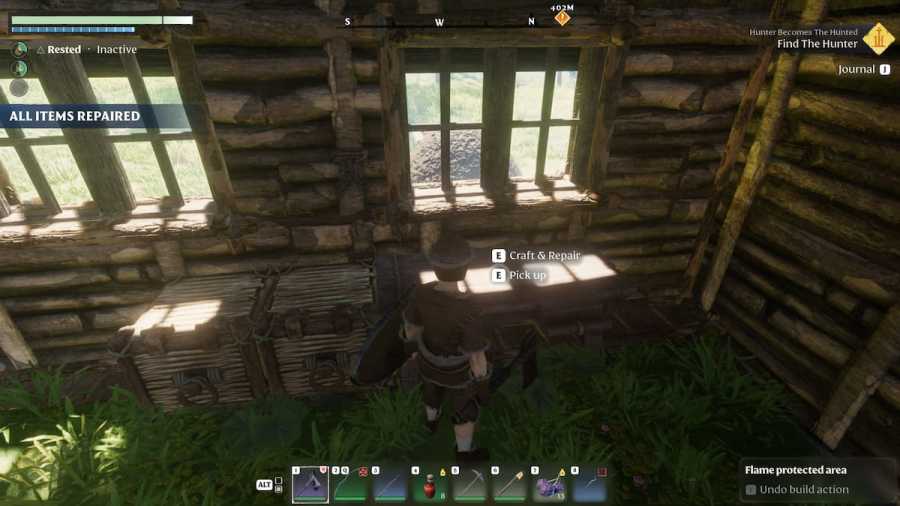
How to Repair and Upgrade Weapons in Enshrouded
Complete guide to repairing and upgrading weapons in Enshrouded, including free repair methods, Blacksmith upgrades, and Rune farming strategies.
Enshrouded Class Tier List - Best Classes Ranked
Complete tier list ranking all 12 classes in Enshrouded from S-Tier to D-Tier, including Battlemage, Tank, Survivor, Warrior, and more with detailed class analysis.