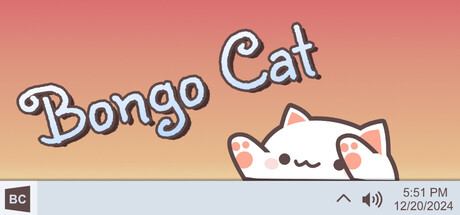
Bongo the Cat - Complete Setup & Configuration Guide
Last Updated: January 15, 2025
Difficulty: Intermediate
Time Required: 15-20 minutes
Introduction
Once you’ve installed Bongo the Cat, it’s time to customize it to perfection! This comprehensive guide covers all settings, configuration options, and advanced features to help you get the most out of your desktop companion.
Accessing Settings
Opening the Settings Menu
There are three ways to access Bongo the Cat settings:
Method 1: Right-Click Menu (Recommended)
- Locate the Bongo Cat icon on your taskbar
- Right-click the cat
- Select “Settings” from the menu
Method 2: System Tray Icon
- Find the Bongo Cat icon in your system tray (bottom-right corner)
- Right-click the icon
- Choose “Settings”
Method 3: Hotkey
- Press Ctrl + Shift + B (default hotkey)
- Opens settings window instantly
Settings Overview
The Bongo the Cat settings window is organized into several tabs:
- Appearance - Visual customization
- Audio - Sound settings
- Behavior - Animation and interaction
- Hotkeys - Keyboard shortcuts
- Advanced - Performance and technical options
- About - Version info and credits
Let’s explore each section in detail.
Appearance Settings
Skins and Visual Style
How to Change Skins:
- Open Settings → “Appearance” tab
- Browse the “Skin Selector” gallery
- Click on any skin to preview
- Click “Apply” to use the skin
Available Default Skins:
- Classic White Cat - The original iconic look
- Black Cat - Sleek dark variant
- Orange Tabby - Warm orange tones
- Gray Cat - Subtle neutral option
- Calico - Multi-colored pattern
- Siamese - Elegant dark points
- Tuxedo - Black and white formal style
Community Skins:
- Browse the Steam Workshop for thousands of custom skins
- Import downloaded skins via “Import Skin” button
- See our Customization Guide for details
Size and Position
Cat Size:
- Small - Compact, takes less taskbar space
- Medium - Default balanced size
- Large - More visible, recommended for high-res displays
- Custom - Drag slider for precise sizing
Position on Taskbar:
- Left - Appears on left side of taskbar
- Center - Middle position
- Right - Default, right side placement
- Auto - Follows your system tray position
Transparency
Control how visible the cat is:
- Opaque (100%) - Fully solid, no transparency
- Semi-transparent (50-90%) - See through slightly
- Ghostly (25-50%) - Very faint appearance
- Custom - Drag slider to preferred opacity
Use Cases:
- High transparency for minimal distraction
- Full opacity for maximum cuteness
- Medium transparency for balanced aesthetic
Display Options
Always on Top:
- ☑️ Enabled - Cat stays visible above other windows
- ☐ Disabled - Can be covered by other apps
Show on All Monitors:
- Useful if you have multi-monitor setup
- Select which monitor(s) display the cat
- Can show different skins on each monitor
Audio Settings
Sound Controls
Master Volume:
- Slider from 0% (silent) to 100% (loudest)
- Independent from Windows system volume
- Recommended: 30-50% for comfortable level
Mute Sounds:
- Quick toggle to silence all sounds
- Useful during meetings or presentations
- Hotkey available (see Hotkeys section)
Sound Packs
Choose different drum sound styles:
Default Sound Packs:
- Classic Bongo - Traditional drum sounds
- Deep Drums - Bass-heavy beats
- Light Taps - Soft, subtle sounds
- Electronic - Synthesized beeps
- Piano Keys - Musical notes
- Wood Blocks - Hollow percussion
- Silent - Animation only, no sound
Custom Sound Packs:
- Import community-created sound packs
- Create your own (see Customization Guide)
- Available on Discord and Steam Workshop
Audio Behavior
Volume Auto-Adjust:
- Automatically lowers volume during voice calls
- Detects Zoom, Teams, Discord, Skype
- Can customize sensitivity
Typing Speed Volume:
- ☑️ Enabled - Faster typing = louder sounds
- ☐ Disabled - Constant volume regardless of speed
Behavior Settings
Animation Controls
Animation Speed:
- Slow - Relaxed, chill drumming
- Normal - Default balanced speed
- Fast - Energetic, quick movements
- Turbo - Ultra-fast for high WPM typists
- Custom - Precise slider adjustment
Animation Style:
- Realistic - Natural cat movements
- Bouncy - Exaggerated, playful
- Smooth - Fluid transitions
- Snappy - Quick, sharp movements
Interaction Settings
Typing Detection:
- Sensitivity: How many keystrokes trigger animation
- Low = requires more typing
- High = triggers on single keystrokes
- Recommended: Medium
Idle Behavior:
- Idle After: Time before cat goes idle (10s - 5min)
- Idle Animation:
- Sleep (cat curls up)
- Wave (occasional paw wave)
- None (stays in drumming pose)
Mouse Interaction:
- ☑️ Respond to Mouse Hover - Cat reacts when you hover
- ☑️ Respond to Clicks - Cat gives feedback when clicked
- ☐ Disabled - No mouse interactions
Special Effects
Particle Effects:
- None - Clean, simple look
- Sparkles - Twinkling stars when drumming
- Hearts - Floating hearts (cute mode)
- Music Notes - Musical notation appears
- Custom - Import community effects
Rainbow Mode:
- Cat cycles through colors
- Great for Pride Month or festive occasions
- Adjustable speed and saturation
Hotkeys Configuration
Customize keyboard shortcuts for quick control:
Default Hotkeys
| Function | Default Hotkey | Customizable |
|---|---|---|
| Open Settings | Ctrl + Shift + B | ✅ Yes |
| Pause/Resume | Ctrl + Shift + P | ✅ Yes |
| Mute Sounds | Ctrl + Shift + M | ✅ Yes |
| Cycle Skins | Ctrl + Shift + S | ✅ Yes |
| Hide/Show Cat | Ctrl + Shift + H | ✅ Yes |
| Screenshot Cat | Ctrl + Shift + C | ✅ Yes |
Creating Custom Hotkeys
- Go to Settings → “Hotkeys” tab
- Click on the function you want to modify
- Press your desired key combination
- Avoid conflicts with other apps
- Click “Save”
Tips:
- Use Ctrl/Shift/Alt combinations to avoid conflicts
- F13-F24 keys work if you have extended keyboard
- Avoid system hotkeys (Ctrl+C, Ctrl+V, etc.)
Advanced Settings
Performance Options
CPU Usage:
- Low - Minimal CPU, simple animations
- Medium - Balanced (recommended)
- High - Smooth animations, more resources
- Auto - Adjusts based on system load
GPU Acceleration:
- ☑️ Enabled - Uses graphics card for smoother performance
- ☐ Disabled - CPU-only rendering (for older systems)
Frame Rate:
- 30 FPS - Basic smoothness, low resources
- 60 FPS - Smooth animations (recommended)
- 120 FPS - Ultra-smooth (high-end PCs only)
- Unlimited - Match your monitor refresh rate
Startup and Background
Launch on Windows Startup:
- ☑️ Enabled - Starts automatically with Windows
- ☐ Disabled - Manual launch required
Run in Background:
- ☑️ Enabled - Keeps running when minimized
- ☐ Disabled - Closes when minimized
System Tray Icon:
- ☑️ Show Icon - Display in system tray
- ☐ Hide Icon - Minimal interface
Privacy Settings
Keyboard Monitoring:
- Bongo Cat only detects when you type, not what you type
- No keylogging or data collection
- 100% privacy-safe
Analytics:
- ☐ Send Anonymous Usage Data - Help developers improve app
- All data is anonymous and opt-in only
Update Settings
Auto-Update:
- ☑️ Enabled - Automatically check for updates
- Check Frequency: Daily, Weekly, Manual
- Download Automatically: Yes/No
Beta Builds:
- ☐ Join Beta Program - Get early access to new features
- More features, but potential bugs
- Can revert to stable anytime
Recommended Settings by Use Case
For Work/Productivity
✅ Medium size
✅ Semi-transparent (70%)
✅ Low volume or muted
✅ Normal animation speed
✅ Disable particle effects
✅ Low CPU usage
For Fun/Entertainment
✅ Large size
✅ Opaque (100%)
✅ High volume
✅ Fast animation speed
✅ Rainbow mode + sparkles
✅ High frame rate
For Streaming/Content Creation
✅ Medium-Large size
✅ Opaque (100%)
✅ Custom sound pack
✅ Always on top
✅ Particle effects enabled
✅ Screenshot hotkey ready
For Laptop/Battery Saving
✅ Small size
✅ Muted sounds
✅ Slow animations
✅ Low CPU usage
✅ 30 FPS frame rate
✅ No particle effects
Troubleshooting Settings Issues
Settings Won’t Save
Problem: Changes revert after closing settings window
Solution:
- Run Bongo Cat as Administrator (right-click → “Run as admin”)
- Check if config file is read-only
- Ensure antivirus isn’t blocking writes
Hotkeys Not Working
Problem: Custom hotkeys don’t respond
Solution:
- Check for conflicts with other apps
- Disable hotkeys temporarily, re-enable
- Restart Bongo Cat application
Performance Issues
Problem: Cat animations lag or stutter
Solution:
- Lower frame rate to 30 FPS
- Disable particle effects
- Enable GPU acceleration
- See our Troubleshooting Guide
Exporting and Importing Settings
Backup Your Configuration
Save your perfect setup:
- Settings → “Advanced” → “Export Config”
- Choose save location
- File saved as
bongo-config.json
Share with Friends
Send your config file to friends so they can use your setup!
Import Configuration
- Settings → “Advanced” → “Import Config”
- Select downloaded config file
- Restart Bongo Cat to apply
What’s Next?
Now that you’ve mastered the settings, explore:
- Customization Guide - Create custom skins and sounds
- Troubleshooting Guide - Fix common issues
- Community Guide - Share your setup with others
Conclusion
With these comprehensive settings, you can fine-tune Bongo the Cat to perfectly match your workflow, aesthetic, and preferences. Experiment with different combinations to find your ideal setup!
Pro Tip: Save multiple configuration profiles for different scenarios (work, gaming, streaming) and switch between them easily.
Last verified: January 2025 | Guide author: SilentSalt Gaming Guides
Related Guides
Bongo the Cat Community Guide - Discord, Resources & How to Connect
Join the Bongo the Cat community! Connect on Discord, share creations, find resources, participate in events, and meet fellow fans worldwide.
Bongo the Cat Customization Guide - Skins, Sounds & Custom Content 2025
Learn how to customize Bongo the Cat with custom skins, sound packs, and community creations. Download from Steam Workshop, Discord, and create your own!
Bongo the Cat Troubleshooting Guide - Fix Common Issues & Errors
Fix Bongo the Cat issues: not working, won't launch, no animation, performance problems, sound issues, and more. Complete solutions for all common errors.